
Best AI Video Editing Tools 2026: Edit Videos Smarter, Not Harder
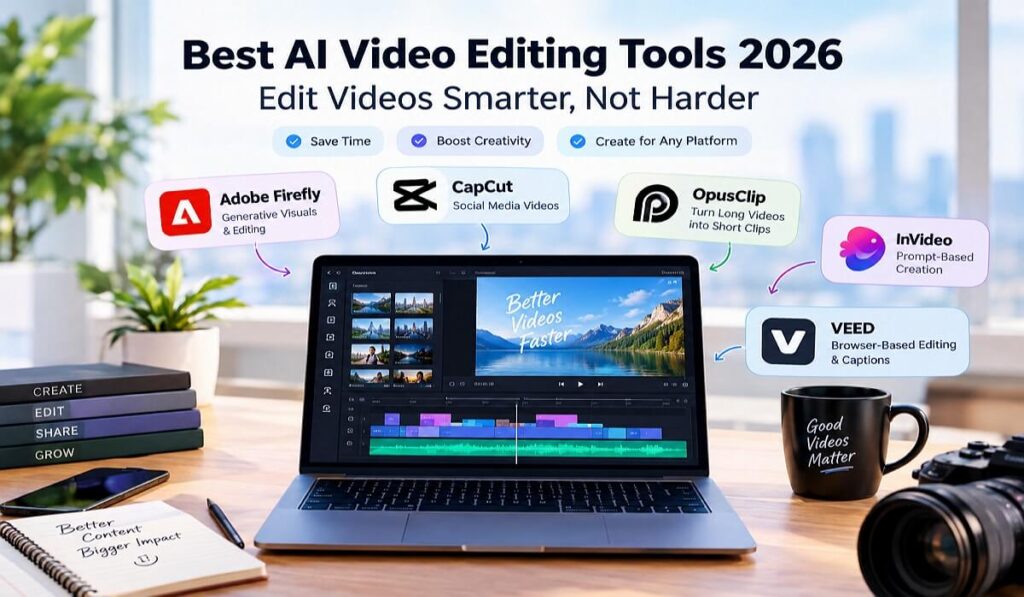
The best AI video editing tools in 2026 depend on what you want to create. Adobe Firefly is a strong choice for generative visual editing, CapCut makes social videos easier to produce, OpusClip turns long recordings into short clips, InVideo builds videos from prompts, and VEED simplifies browser-based editing. The right tool can save time on repetitive tasks without taking creative control away from you.
AI video editing has moved beyond automatic subtitles and one-click filters. Today’s tools can generate footage, find highlights, remove filler words, assemble scenes, and adapt content for different platforms. But more automation does not always mean a better finished video. Some tools excel at creating new visuals, while others are much better at refining footage you already have.
This guide compares five popular AI video editors by their core features, pricing models, strengths, limitations, and ideal use cases, helping you choose a tool that fits your workflow and budget.
How We Evaluated the Best AI Video Editing Tools in 2026
This comparison uses an editorial evaluation framework based on publicly documented features, available plan information, workflow suitability, and the types of creators each product serves. It is not a claim that every tool underwent identical hands-on testing.
We considered five factors:
- AI editing capabilities: How effectively the tool assists with cutting, captions, scene generation, reframing, or other repetitive tasks.
- Ease of use: Whether beginners can produce useful results without learning a complicated editing workflow.
- Creative control: How much flexibility users retain over timing, visuals, audio, and the final cut.
- Value for money: What the free tier includes and which important features require payment.
- Best-fit workflow: Whether the product is designed primarily for generative video, social clips, marketing content, or general editing.
One distinction matters: AI video generation and AI video editing are not the same thing. Generation creates new footage from prompts or reference images. Editing arranges, trims, enhances, and refines footage into a finished video. Some products combine both, but their strengths can differ considerably.
Our ratings are editorial judgments, not user-review averages or independent laboratory scores. Features, prices, and plan limits can change, so check the linked official pages before subscribing.
Best AI Video Editing Tools 2026: Top 5 Compared
The following tools address different production problems. Rather than treating them as interchangeable, choose according to the work you need to get done.
| Tool | Best for | Platform | Pricing model | Editorial rating |
|---|---|---|---|---|
| Adobe Firefly | Generative visuals and AI-assisted editing | Web; mobile for supported features | Free access with limits; paid plans | 4.5/5 |
| CapCut | TikTok, Reels, and Shorts | Web, desktop, mobile | Free and paid plans | 4.6/5 |
| OpusClip | Turning long videos into short clips | Web | Limited free plan; paid plans | 4.4/5 |
| InVideo AI | Prompt-based video creation | Web | Limited free access; paid plans | 4.3/5 |
| VEED | Online editing, subtitles, and audio cleanup | Web browser | Free plan; paid plans | 4.4/5 |
These scores reflect the tools’ publicly documented capabilities and intended use cases. They should not be interpreted as proof that one product produces objectively better results than another.
1. Adobe Firefly AI Video Editor: Best for Generative Visual Editing
Best for: Marketers, designers, and creators who need original visual assets or want to modify existing footage using AI.
Adobe Firefly combines generative video capabilities with an editing workflow. Users can create clips from text or images, make certain changes through prompts, and assemble footage on a timeline. Its editing features include trimming, rearranging clips, adding audio, and making basic color adjustments. Some timeline editing features are still in beta, so availability may change.
Key features
- Text-to-video and image-to-video generation.
- Prompt-based video editing and visual transformations.
- Timeline editing with clip arrangement and trimming.
- Audio enhancement and integration with other Adobe creative tools.
Platforms and pricing: Firefly is available on the web, with supported generation features also available on iOS and Android. Its timeline-based video editor has more limited desktop-browser support. A free option provides limited generations, while paid plans add credits and access to additional capabilities. Adobe’s official pricing page lists Firefly Standard at US$9.99 per month and Pro at US$19.99 per month at the time of this review. Check current terms and regional pricing before purchasing.
Pros
- Combines AI-generated footage and editing in one creative environment.
- Useful for product visuals, B-roll, concept scenes, and marketing assets.
- Fits naturally into Adobe-oriented creative workflows.
Cons
- Generative credits can limit how much footage you produce.
- Generated clips may still require substantial editing.
- It is not a complete replacement for every advanced traditional editing workflow.
User and expert feedback: Adobe documents Firefly’s prompt-based editing and timeline capabilities, but this guide does not assign an invented customer quotation or claim independent expert endorsement. See the official feature overview.
Our rating: 4.5/5. Choose Firefly when creating or transforming visuals is a central part of the project. If your main job is cutting talking-head footage into a tight interview, another tool may be more efficient.
2. CapCut AI Video Editor: Best for Social Media Videos
Best for: TikTok creators, YouTubers, Instagram users, and beginners producing frequent short-form content.
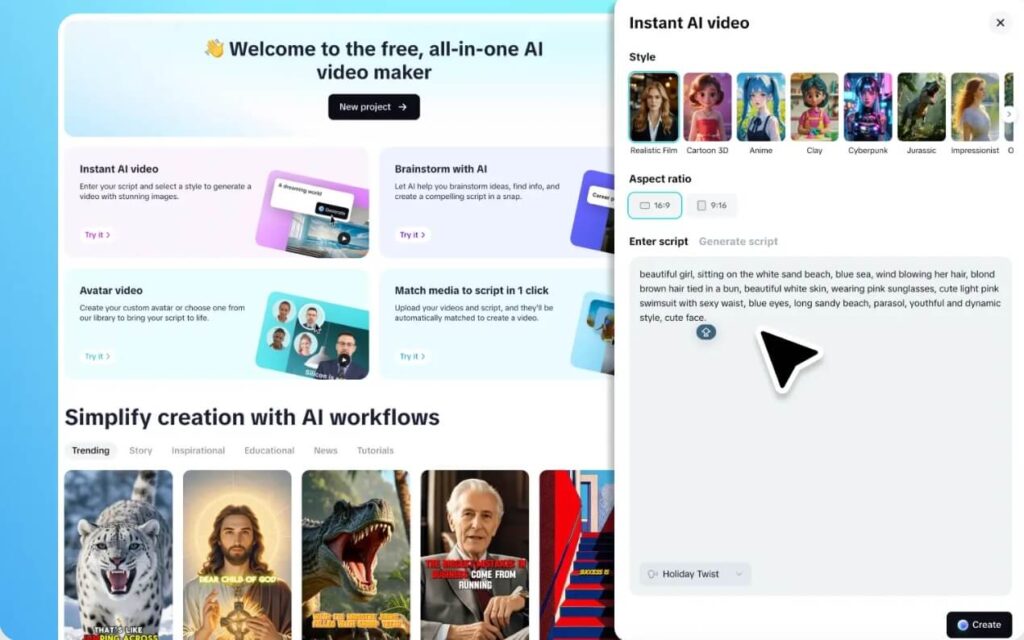
CapCut combines a familiar editing interface with AI-assisted creation. Depending on feature availability and plan, creators can generate captions, turn scripts into videos, remove unwanted pauses, use templates, and adapt content for different formats. Its AI tools are particularly relevant when speed and social-ready presentation matter more than complex post-production.
Key features
- Automatic captions and text-to-speech.
- AI-assisted cuts and editing workflows.
- Templates, effects, transitions, and social-friendly formats.
- AI video generation and translation features in supported workflows.
Platforms and pricing: Web, Windows, macOS, iOS, and Android, with feature availability varying by platform and region. CapCut offers free basic editing and paid plans. Its official pricing page lists Pro at US$19.99 per month in the displayed US pricing, while final prices and available features may vary by account.
Pros
- Accessible for beginners.
- Strong fit for vertical video and social media workflows.
- Combines conventional editing with automated tools and ready-made templates.
Cons
- Some popular effects, assets, and AI features require payment or credits.
- Template-driven editing can make content look less distinctive.
- Advanced projects may require more precise control than its streamlined workflows provide.
User and expert feedback: CapCut’s official AI editing overview documents features such as AutoCut, AI Clipper, transcript editing, and video translation. These are product-documented capabilities, not a substitute for independent comparative testing.
Our rating: 4.6/5. For creators who publish frequently on social platforms, CapCut is a practical starting point. The main question is whether its free features cover your workflow or whether you need paid assets and AI credits.
3. OpusClip AI Video Editor: Best for Repurposing Long Videos
Best for: Podcasters, interviewers, educators, and creators who want to turn existing long-form content into multiple short videos.
OpusClip focuses on a specific but valuable problem: finding useful moments in longer recordings and turning them into clips suitable for social platforms. Rather than building every short video from scratch, creators can use AI clipping, captions, reframing, and editing tools to prepare candidate clips for review.
For example, a podcast creator with a recorded interview can upload the source video, review automatically selected highlights, correct captions, and prepare vertical clips for YouTube Shorts or Instagram Reels. This is a representative workflow, not a claim that a particular creator achieved a measured performance improvement.
Key features
- AI-powered clip selection and highlight detection.
- Animated captions and reframing for vertical video.
- Filler-word and silence removal.
- Editing tools and publishing integrations, depending on plan.
Platforms and pricing: Primarily web-based. OpusClip offers a free plan with limited monthly credits and watermarked clips. Its official pricing page lists Starter at US$15 per month, billed monthly, and a Pro option with additional features and different annual-billing terms.
Pros
- Reduces the manual work involved in finding short clips.
- Designed specifically for repurposing long recordings.
- Captions and reframing support social-first distribution.
Cons
- AI-selected highlights still need human review for context and accuracy.
- Less suitable when the goal is to create an entirely new video from a blank page.
- Free-plan restrictions can make regular production difficult.
User and expert feedback: OpusClip’s official editor description explains its AI clipping, text-based editing, timeline, and brand tools. These documented features support its use case, but no fabricated user testimonial is included.
Our rating: 4.4/5. OpusClip is worth considering if you already have long recordings and want to distribute them across multiple channels. It is less compelling if you rarely produce long-form footage.
4. InVideo AI Video Editor: Best for Creating Videos from Prompts
Best for: Small businesses, marketers, educators, and creators who want to turn a written idea into a structured video.
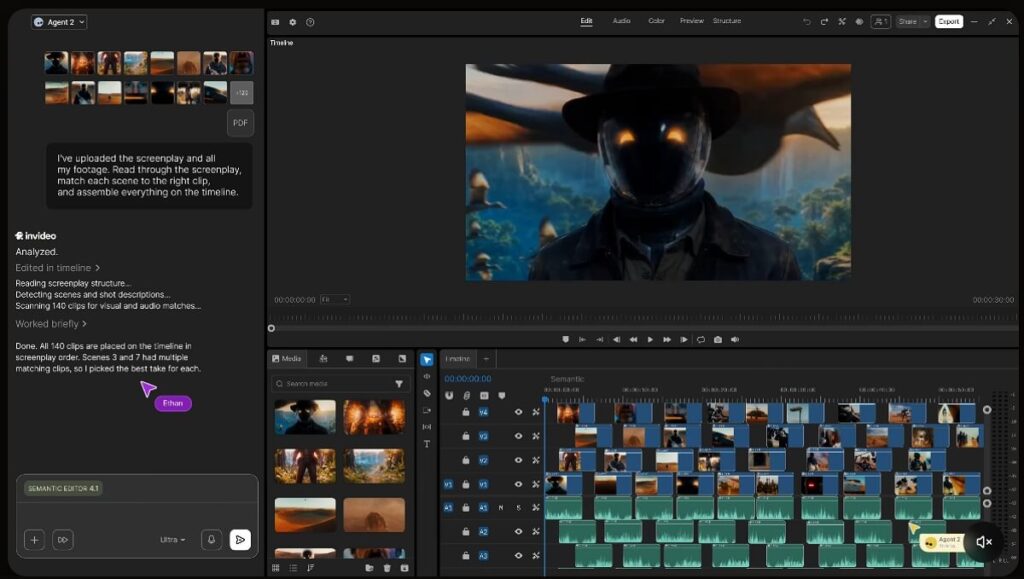
InVideo AI emphasizes prompt-based creation. Instead of manually sourcing every scene at the beginning, a user can describe a video concept and let the platform help assemble a draft with visuals, narration, and other elements. The result can then be refined rather than accepted as finished automatically.
This approach is useful for explainers, promotional videos, and content that does not depend entirely on original camera footage. It can also help creators who have a clear message but limited traditional editing experience.
Key features
- Prompt-based video creation.
- AI-assisted scripts, narration, and visual selection.
- Stock footage and AI-generated assets, depending on plan.
- Timeline editing and collaborative features in supported plans.
Platforms and pricing: Web-based, with no conventional desktop installation required for the main workflow. InVideo offers limited free access and paid subscription tiers. Its official pricing page lists a Starter plan at US$20 per seat per month with annual billing; credit allowances and model access vary by plan.
Pros
- Can turn a written brief into an initial video structure.
- Useful for explainers, marketing content, and faceless video formats.
- Reduces the need to assemble every visual manually at the outset.
Cons
- Generated scripts and selected visuals may need careful correction.
- Credits and model availability affect production volume.
- Stock-based videos may look generic without custom visuals and editing.
User and expert feedback: InVideo’s official plan information documents its AI creation features, timeline editor, and model-dependent access. This confirms the product’s intended workflow but does not establish that every generated video will meet professional standards.
Our rating: 4.3/5. Choose InVideo if your biggest obstacle is turning an idea or script into a first draft. If you already have carefully shot footage, a more editing-focused product may suit you better.
5. VEED AI Video Editor: Best for Browser-Based Editing and Captions
Best for: Teams, educators, marketers, and creators who need to edit videos, add subtitles, and improve audio without installing a full desktop editor.
VEED brings editing and AI-assisted production into a browser-based workspace. Users can trim clips, add text, generate captions, clean audio, and use automation to speed up repetitive tasks. Its text-based editing workflow can also make it easier to cut spoken content without relying entirely on a traditional timeline.
Key features
- Automatic subtitles and text-based editing.
- AI audio cleanup and filler-word removal.
- AI-assisted B-roll and video creation.
- Online editing, sharing, and collaboration features.
Platforms and pricing: Primarily browser-based on desktop and compatible mobile browsers, with practical feature availability depending on the device. VEED offers free access with limitations and paid plans for additional capabilities. Its official editor page states that free exports include a watermark; paid plans unlock watermark-free exports and higher-resolution options. Displayed starting prices can vary by billing method and region.
Pros
- No full desktop editing installation required.
- Useful combination of subtitles, audio cleanup, and editing tools.
- Convenient for teams that review and share video content online.
Cons
- Free exports include a watermark.
- AI features and higher-quality exports may require a subscription.
- Browser-based editing may be less suitable for demanding projects with large amounts of high-resolution footage.
User and expert feedback: VEED’s official page displays a 4.6/5 rating from more than 2,100 reviews. This is a vendor-displayed rating, not an independently verified comparison across all five products.
Our rating: 4.4/5. VEED is a strong candidate when captions, audio cleanup, and convenient browser access matter more than highly specialized cinematic editing.
How to Choose the Best AI Video Editor for Your Workflow
The most useful way to compare AI video editing tools is to start with the bottleneck in your production process. Are you struggling to find footage, identify highlights, clean up speech, or finish the final cut? Different tools solve different problems.
| Your primary goal | Recommended tool | Why |
|---|---|---|
| Generate or transform visual scenes | Adobe Firefly | Generative footage and prompt-based edits |
| Produce TikTok, Reels, or Shorts | CapCut | Templates and social-first editing |
| Repurpose podcasts or interviews | OpusClip | Automated highlight selection and reframing |
| Turn a script into a video | InVideo AI | Prompt-based video assembly |
| Add captions and clean audio online | VEED | Browser-based editing and AI assistance |
Here is a useful way to think about the decision: the best AI editor is not necessarily the one with the most features; it is the one that removes the most expensive bottleneck in your workflow.
Imagine a small marketing team producing a weekly product tutorial. If the footage is already recorded, generating new scenes may not save much time. Automatic transcription, filler-word removal, and reusable caption styles may deliver more value. For a team making videos from written briefs without filming, prompt-based creation may be the more useful starting point.
That distinction also explains why no single tool is ideal for every creator. A workflow can even combine products: generate a visual asset in Firefly, edit a social-ready version in CapCut, or repurpose a longer recording with OpusClip. The trade-off is the time and complexity involved in moving files between tools.
Before subscribing, try one representative project. Use the same source footage or brief, check the export quality, review the captions, and note how much manual correction remains. This small comparison is more informative than choosing a product solely because it advertises more AI features.
Are Free AI Video Editing Tools Good Enough in 2026?
For occasional projects, social videos, and learning the basics, a free plan may be sufficient. But “free” can mean several different things:
- Free forever: A continuing free tier with defined limitations.
- Free trial: Temporary access to paid features.
- Limited AI credits: Access to generation or automation up to a usage allowance.
- Free export with restrictions: The video can be downloaded, but it may include a watermark or have resolution limitations.
The differences matter. OpusClip’s free plan, for example, has limited credits and watermarked clips, while VEED’s free exports include a watermark. Adobe Firefly provides limited free generations, and InVideo offers limited free access with credit-based restrictions. CapCut provides free basic editing, but premium features and AI credits can require payment. Always check current terms before building a production workflow around a free tier.
A sensible upgrade decision comes down to three questions:
- Will you publish regularly? Frequent creators may benefit from paid automation and reusable assets.
- Does the free plan restrict your actual deliverable? Watermarks, export quality, and commercial-use terms can matter more than the number of features advertised.
- Does the subscription save enough manual work? Compare the cost with the editing tasks it genuinely removes.
For beginners, start free and upgrade only after identifying a specific limitation. For businesses, review licensing and commercial-use terms for both the tool and any third-party assets it supplies.
Frequently Asked Questions About AI Video Editing Tools
1. What is the best AI video editing tool in 2026?
There is no universal winner. CapCut is a practical choice for social videos, Adobe Firefly for generative visuals, OpusClip for repurposing long recordings, InVideo AI for prompt-based creation, and VEED for browser-based editing and captions.
2. What is the best free AI video editing software?
The best option depends on the task. CapCut offers free basic editing, Adobe Firefly provides limited free generations, and OpusClip, InVideo, and VEED offer free access with different restrictions. Check watermarks, credits, export limits, and feature availability before choosing.
3. Can AI edit videos automatically?
Yes. AI can assist with tasks such as generating captions, selecting highlights, removing pauses, reframing footage, and assembling draft videos. However, human review remains important for context, factual accuracy, pacing, and visual consistency.
4. Which AI video editor is best for YouTube?
For Shorts, CapCut and OpusClip are useful starting points. For turning scripts into new videos, InVideo AI may be more appropriate. For longer tutorials, interviews, or content that needs detailed review, VEED or a combination of editing tools may be a better fit.
5. Are AI-edited videos suitable for commercial use?
They can be, but commercial use depends on the product’s terms, the subscription plan, the underlying model, and the rights associated with uploaded or generated assets. Review the relevant license, third-party asset restrictions, and any applicable disclosure requirements before publishing commercial content.
Final Verdict
The best AI video editing tools in 2026 are those that fit the way you actually create. CapCut is a sensible choice for social-first editing, Adobe Firefly for generative visuals, OpusClip for short-form repurposing, InVideo AI for prompt-based creation, and VEED for online editing and subtitles.
Start with your biggest production bottleneck, test a representative project, and evaluate the finished export—not just the feature list. AI can make video production more efficient, but good creative judgment still makes the difference between an automatically assembled video and a video worth watching.

 English