
Is Cursor Down or Just You? Status, Outages, and Solutions

As an AI-powered code editor, Cursor has revolutionized the way developers write, debug, and optimize software. However, because it relies heavily on cloud-based LLMs (Large Language Models) like Claude 3.5 Sonnet and GPT-4o, any service interruption can bring a productive coding session to a grinding halt. If you are currently staring at a “Connection Failed” error or a non-responsive chat window, you are likely asking: Is Cursor down?
In this comprehensive guide, we will explore how to check the current status of Cursor AI, identify the most common causes for outages, and provide actionable fixes to get you back to coding as quickly as possible.
Is Cursor Down? How to Check The Current Status
Before you start reinstalling software or tinkering with your router, you need to verify the global status of the service. Here are the most reliable ways to determine if is cursor ai down for everyone or just you.
1. Check the Official Cursor Status Page
Cursor maintains a dedicated status page (typically hosted via StatusGator or their own domain) that logs incidents.
- Search for: status.cursor.com or check StatusGator for Cursor.
- What to look for: Look for “Major Outage,” “Degraded Performance,” or “Partial Outage” in components like Cloud Agents, Authentication, or Cursor Tab.
2. Community Pulse: Twitter (X) and Reddit
Social media is often faster than official status pages. If is cursor down, hundreds of developers will likely be tweeting about it within minutes.
- Twitter/X: Search for the hashtag #CursorAI or check the official @cursor_ai account.
- Reddit: Visit the r/cursor subreddit. Users frequently post “Is it down for anyone else?” threads during global outages.
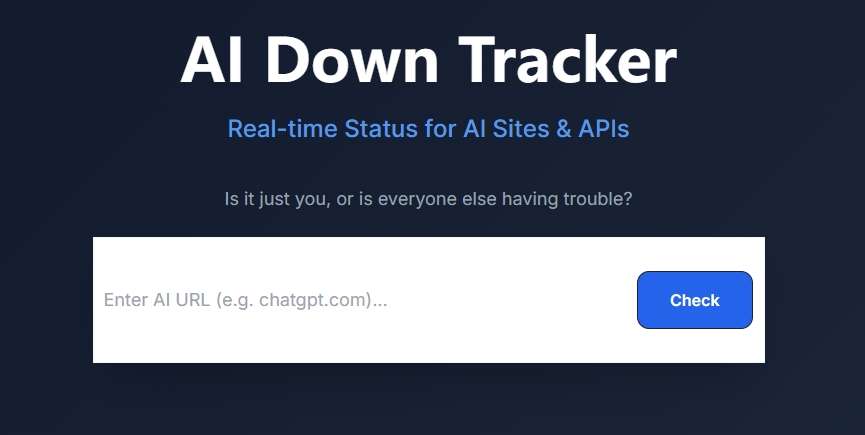
3. Use the AI Down Tracker
For a fast, developer-centric view of AI service health, the AI Down Tracker by AI4How is an excellent resource. This tool provides a real-time, centralized dashboard to monitor the health of top AI platforms like Cursor AI, ChatGPT, Claude, and DeepSeek. Fast, reliable, and completely transparent — it’s the ultimate uptime companion for every AI power user.
4. The Cursor Forum
The Cursor Community Forum (forum.cursor.com) has a dedicated “Bug Reports” section. If there is a widespread issue with a specific model (like Claude 4.5 or GPT-4o) or a specific version of the editor, the community and developers will discuss it here in detail.
Common Reasons Why Cursor Might Be Down
If you’ve confirmed that cursor is down, it’s helpful to understand why. Usually, the issue falls into one of these categories:
1. Third-Party Model Provider Issues
Cursor doesn’t just run on its own hardware; it bridges your requests to providers like Anthropic, OpenAI, and Google. If Claude or GPT-4 is experiencing an outage, Cursor’s AI features will fail by extension.
2. Authentication Server Failures
Even if the AI models are working, you might be locked out if Cursor’s authentication server is down. This prevents the editor from verifying your Pro subscription, leading to errors where the editor thinks you’ve exceeded your limits or don’t have access.
3. API Rate Limiting and Scaling
During periods of high traffic (e.g., following a major feature release), Cursor’s backend infrastructure may struggle to scale. This often results in “502 Bad Gateway” errors or extremely slow response times from the is cursor ai down perspective.
4. Update Incompatibilities
Occasionally, a fresh update to the Cursor desktop app might contain a bug that affects connectivity for specific operating systems (Windows, macOS, or Linux).
How to Fix It When Cursor Is Down on Your Device
Sometimes the service is technically “up,” but your local environment makes it feel like cursor is down. If the status pages look green but your editor isn’t working, try these steps:
1. Run Internal Network Diagnostics
Cursor has a built-in tool to help you identify the bottleneck.
- Navigate to Cursor Settings > Network.
- Click Run Diagnostics.
- This will test your connection to Cursor’s servers, API endpoints, and ping levels.
2. Disable HTTP/2 (The “Compatibility Mode” Fix)
Many users on corporate networks or VPNs experience “Connection Failed” errors because of how their network handles modern HTTP/2 requests.
- Go to Settings > Network.
- Look for HTTP Compatibility Mode.
- Switch the setting to HTTP/1.1.
- Restart Cursor completely. This is a high-success fix for persistent connectivity issues.
3. Clear App Data
Corrupted cache files can lead to “ghost” outages.
- Windows: Delete the folders in %AppData%\Cursor.
- macOS: Run rm -rf ~/Library/Application Support/Cursor in the terminal.
- Note: Back up your custom settings or extensions before doing this.
4. Check Your VPN and Proxy Settings
AI tools are often sensitive to IP changes and proxy intercepts. If you are using a VPN, try disabling it or switching to a different region to see if the cursor is down error persists.
| Action | When to Use It |
| Toggle HTTP/1.1 | If you get constant “Connection Failed” errors. |
| Log Out/In | If your Pro features are not appearing. |
| Delete Cache | If the app is freezing or not loading the chat. |
| Check Firewall | If “Run Diagnostics” shows failed pings. |
Best Alternatives to Use When Cursor Is Down
If you have a deadline and cursor is down for an extended period, don’t let your progress stall. Here are the best alternatives to keep you productive:
1. Windsurf (by Codeium)
Windsurf is perhaps the closest competitor to Cursor in 2026. It offers an “Agentic” coding experience similar to Cursor’s Composer and handles multi-file edits with high precision. It’s an excellent backup when is cursor ai down.
2. GitHub Copilot + VS Code
If you are already familiar with the VS Code ecosystem, switching back to the official GitHub Copilot extension is seamless. While it lacks some of the deep “AI-first” UI elements of Cursor, its stability is world-class.
3. Zed Editor
For those who prioritize speed, Zed is a high-performance editor written in Rust. It has built-in AI capabilities and allows you to “Bring Your Own API Key” (BYOK), which is a lifesaver if Cursor’s central servers are the only thing failing.
4. Continue.dev
This is an open-source extension for VS Code and JetBrains that allows you to plug in any LLM. If you have your own API keys for Anthropic or OpenAI, you can use Continue to replicate much of the Cursor experience without depending on Cursor’s infrastructure.
Conclusion
In modern development, a steady workflow is essential. When AI tools face downtime, it can stall your progress. By learning to distinguish between global outages and local configuration errors, you can minimize frustration.
Navigating these interruptions requires a proactive approach: stay informed through real-time indicators and know which local settings to adjust. Resolving issues quickly or switching to a reliable backup ensures your project moves forward despite technical hiccups. Ultimately, a resilient workflow is one that remains productive regardless of cloud-based service fluctuations.

 English