
Top 10 Free macOS OCR Tools in 2026: Top Picks for Text Recognition
Optical Character Recognition (OCR for short) is an incredibly useful technology that converts different types of documents, such as scanned paper documents, PDFs, or even images, into editable and searchable text. If you’re a Mac user, finding the best OCR macOS tools can be a game-changer for improving productivity, especially when it comes to handling large amounts of paperwork or converting hard copies into digital formats. But with so many options out there, it’s easy to get lost in the sea of choices.
In this article, we’ll explore the top 10 free macOS OCR tools for 2026, carefully selecting ones that excel in accuracy, usability, and features. Whether you’re a student, professional, or just someone who likes to stay organized, these tools will help make the process of extracting text from images and PDFs easier and faster. Let’s dive into the details!
10 Best Free macOS OCR Tools for 2026
1. Adobe Acrobat – OCR macOS Tool
Platform: macOS, Windows, iOS, Android
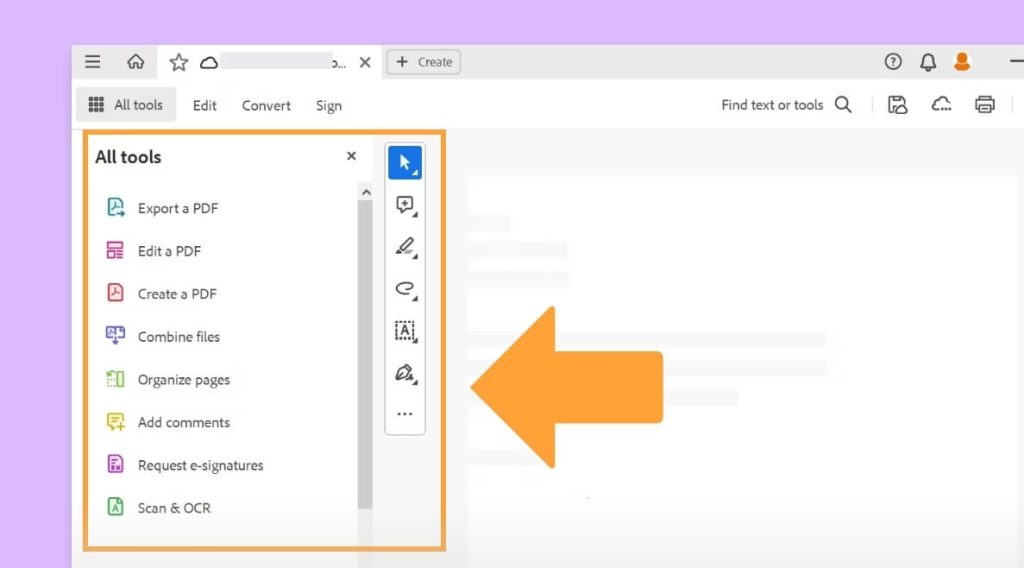
Adobe Acrobat is one of the most recognized names when it comes to PDF editing and text recognition. It offers a powerful OCR macOS feature, which allows users to extract text from scanned documents or images with impressive accuracy.
Key Features:
- Text recognition in multiple languages
- Batch processing for bulk OCR tasks
- User-friendly interface
- High-quality PDF output
- Integration with cloud storage services
Pros:
- Industry standard for PDF editing
- Reliable and fast text recognition
- Easy-to-use interface
Cons:
- Requires a subscription for full functionality
- Limited free features
Price: Free version available with limited OCR features. Full functionality requires a paid subscription.
User Review: “Adobe Acrobat is the most reliable OCR tool I’ve used for my documents. The text recognition is spot-on and I love that it syncs with my Adobe cloud.”
2. OwlOCR
Platform: macOS
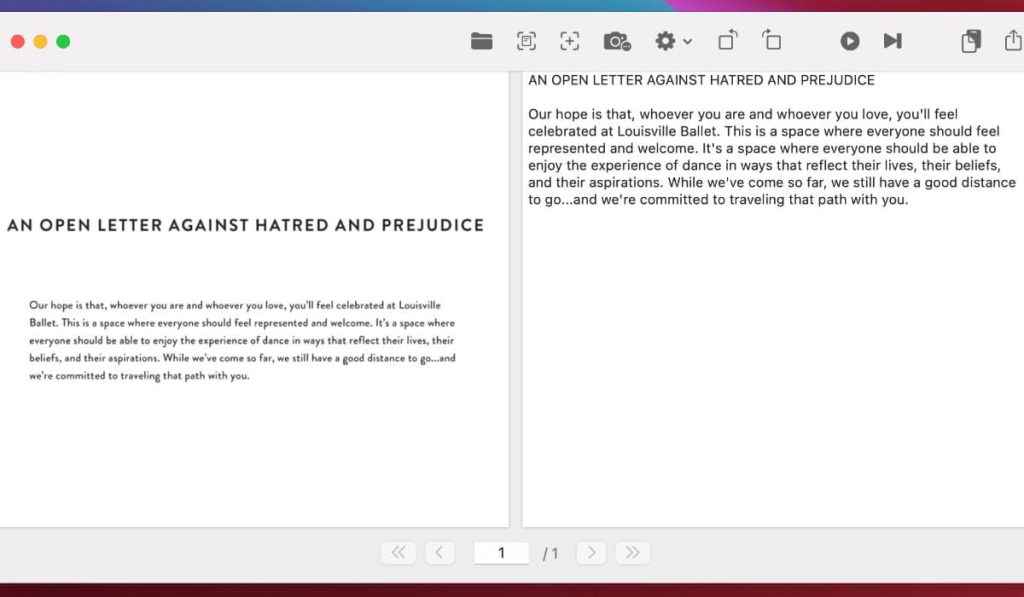
OwlOCR is a simple yet powerful OCR tool designed specifically for Mac users. It excels in recognizing text from screenshots and scanned PDFs.
Key Features:
- Supports multiple languages
- Works with screenshots and scanned documents
- Offline functionality
- Copy-paste text with ease
Pros:
- Lightweight and fast
- No internet required
- Mac-native design
Cons:
- Limited to text extraction only
- No batch processing
Pricing: Free version available; Pro version starts at $9.99
User Review: “OwlOCR is my go-to for quick OCR tasks. It’s simple and effective!” – Emily J.
3. OCRKit – Simple and Fast OCR Tool for macOS
Platform: macOS
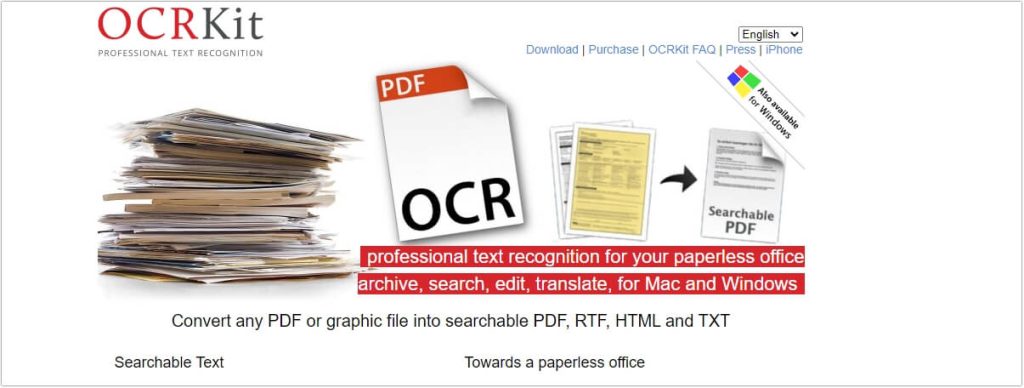
OCRKit is a simple but effective OCR macOS app. It is lightweight and offers high-speed text recognition. Ideal for users who don’t need too many advanced features but still want reliable OCR functionality.
Key Features:
- Quick text recognition
- Supports multiple image formats
- Exports to editable text formats (TXT, RTF, Word)
- Multi-language support
Pros:
- Fast processing
- Easy setup and use
- Affordable one-time payment option
Cons:
- Lacks advanced editing features
- The free version has limited functionality
Price: Free version with limited OCR features. Full version costs $29.99.
User Review: “OCRKit is fast and does the job well. I’m impressed by how quickly it processes scans, even large PDFs.”
4. ABBYY FineReader PDF for Mac – OCR macOS Solution
Platform: macOS
ABBYY FineReader PDF for Mac offers high-quality OCR capabilities along with PDF editing tools. This all-in-one solution is perfect for those who need comprehensive OCR and PDF management tools in one place.
Key Features:
- Multi-language support
- OCR for PDFs and images
- PDF editing, commenting, and collaboration
- Cloud integration
Pros:
- Best suited for PDF-heavy workflows
- Great accuracy with text recognition
- Versatile PDF editing features
Cons:
- Free version is limited in features
- Requires a paid license for full functionality
Price: Free trial available. Full version starts at $199.99.
User Review: “FineReader PDF for Mac is fantastic for working with PDFs. OCR is very accurate, and I love the added editing tools.“
5. SimpleOCR
Platform: macOS, Windows
SimpleOCR is a free OCR Mac app designed for users who need to convert scanned documents or images into editable text. While its interface is simple, it offers reliable optical character recognition (OCR) capabilities, supporting both handwritten and printed text recognition. SimpleOCR uses advanced algorithms to enhance text extraction accuracy, making it ideal for digitizing books, contracts, and historical documents. Additionally, it supports batch processing, significantly improving workflow efficiency. For users looking for a lightweight OCR macOS solution, SimpleOCR is a solid choice.

Key Features:
- Supports multiple file formats
- Fast text extraction
- User-friendly interface
- Works offline
Pros:
- Free and easy to use
- No internet required
- Good for basic OCR needs
Cons:
- No advanced PDF features
- Limited export formats
Pricing: Free
User Review: “SimpleOCR is great for quick scans, but I wish it had more features.” – Kevin L.
6. Readiris – High-Quality OCR for macOS
Platform: macOS, Windows
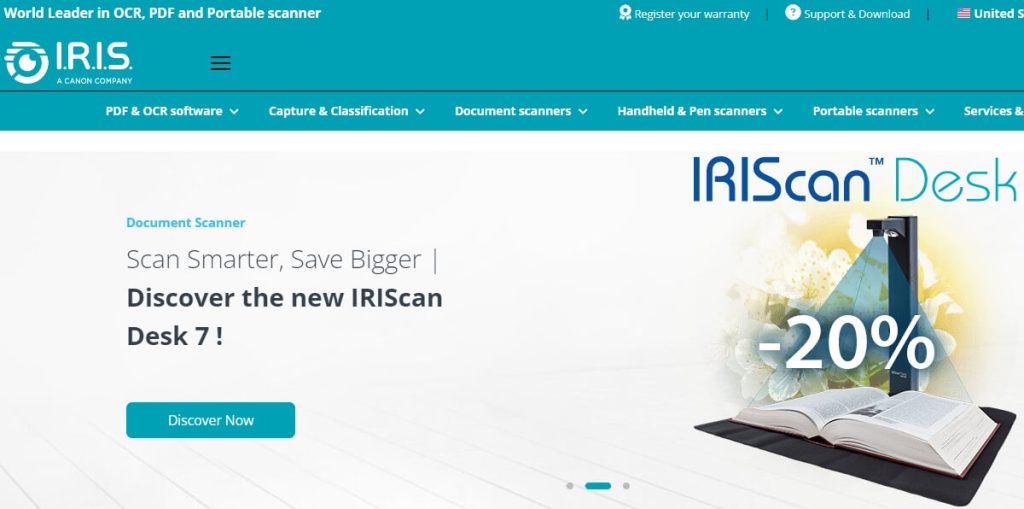
Readiris is a well-known OCR software that offers great functionality for OCR macOS users. It’s perfect for converting documents into editable formats and offers some advanced features for professional use.
Key Features:
- High accuracy for text recognition
- Convert PDFs and images to multiple file formats
- Integrates with cloud storage services
- Supports 137 languages
Pros:
- Excellent text recognition quality
- Good for large OCR tasks
- Cloud integration
Cons:
- The free version is very limited
- The paid version is on the pricier side
Price: Free version available with limited features. Full version starts at $129.
User Review: “I love Readiris for its speed and accuracy. It’s perfect for my large-volume OCR projects.“
7. FreeOCR – Free OCR Tool for macOS
Platform: macOS, Windows
As the name suggests, FreeOCR is a free OCR mac app that provides users with essential OCR features. While it may not offer as many advanced features as others, it gets the job done for basic OCR needs.
Key Features:
- Converts images and PDFs into text
- Supports multiple languages
- Easy-to-use interface
- Quick text extraction
Pros:
- Completely free
- Simple to use
- Supports multiple file formats
Cons:
- Lacks advanced features
- Slower than other paid apps
Price: Free
User Review: “FreeOCR does exactly what I need it to do. Simple and effective.“
8. Onlineocr – Web-Based OCR for macOS
Platform: Web-based (works on macOS)
Onlineocr is a web-based OCR tool that allows you to upload files and extract text without installing any software. It’s perfect for users who need quick OCR solutions without a heavy application.
Key Features:
- Supports over 40 languages
- Converts PDFs, images, and more
- Outputs to editable Word, Excel, and Text files
- No software installation required
Pros:
- Works on any device with a browser
- Free for limited use
- Quick and easy OCR
Cons:
- Limited free uses
- Requires internet connection
Price: Free for up to 15 pages per hour. Paid plans available.
User Review: “Onlineocr is a lifesaver when I need to quickly extract text. I love that I don’t have to install anything.“
9. Easy Screen OCR for Mac – Simple Screen OCR for macOS
Platform: macOS
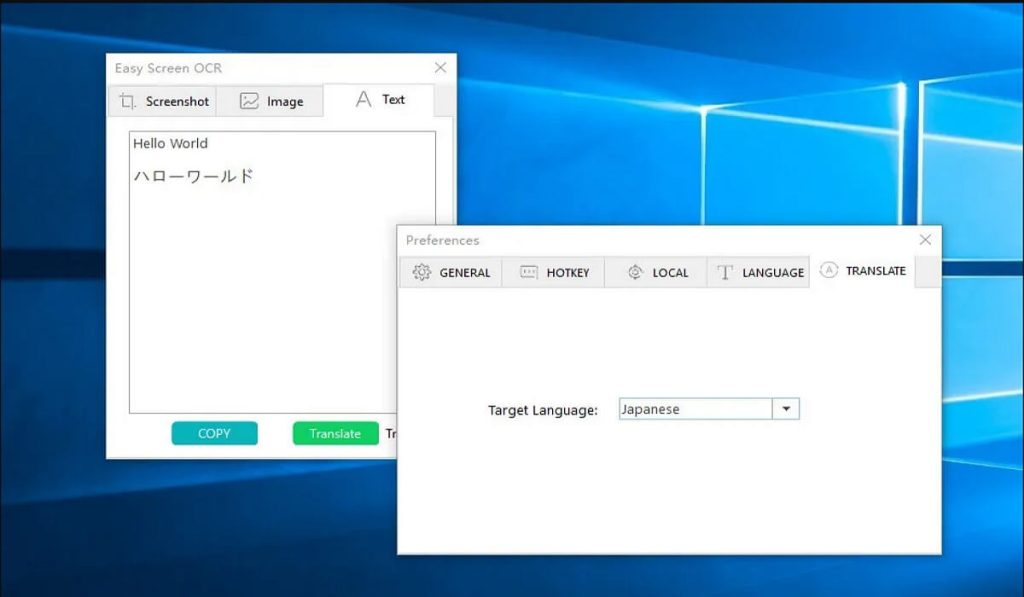
Easy Screen OCR for Mac is a nifty tool that allows you to capture text from your screen, making it ideal for extracting text from images and documents displayed on your Mac.
Key Features:
- Capture text from images, documents, and screen captures
- Simple and intuitive interface
- Supports over 100 languages
- OCR results can be copied directly to the clipboard
Pros:
- Great for screen text extraction
- Lightweight and fast
- Supports multiple languages
Cons:
- Free version is limited in features
- Only suitable for screen captures
Price: Free version with limitations. Full version costs $29.99.
User Review: “Easy Screen OCR is perfect for grabbing text from images or anything on my screen. Very handy!”
10. Prizmo – Versatile OCR macOS App
Platform: macOS, iOS
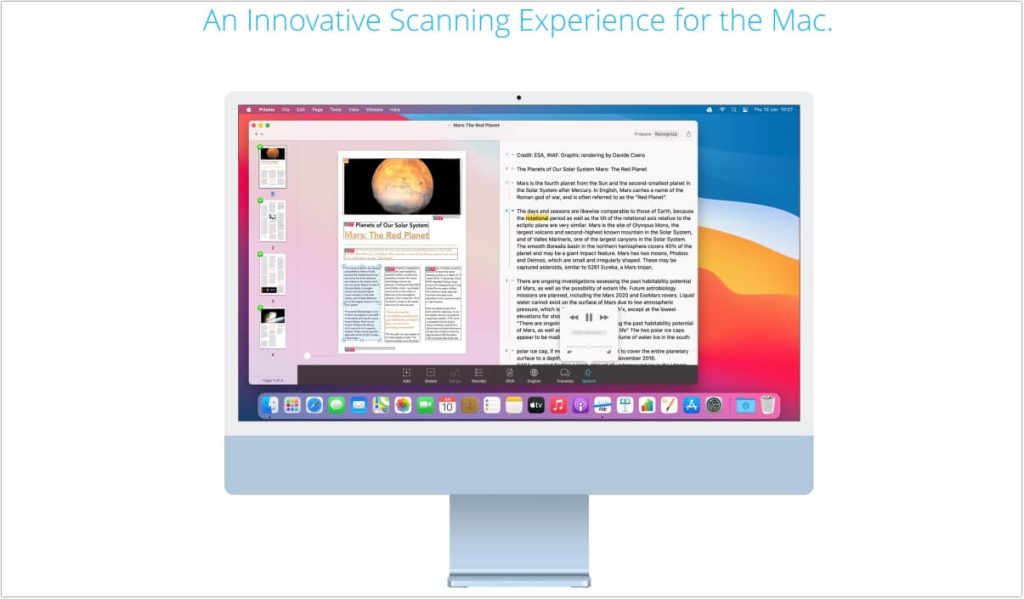
Prizmo is a versatile OCR tool that offers a great set of features for both casual and professional users. It supports over 40 languages and allows for easy text extraction from images and PDFs.
Key Features:
- Text recognition for both printed and handwritten text
- Convert documents into multiple formats
- Optical character recognition in over 40 languages
- Cloud storage integration
Pros:
- Versatile and accurate
- Easy to use
- Great for both printed and handwritten text
Cons:
- Free version offers limited functionality
- Can be a bit expensive for the full version
Price: Free trial available. Full version costs $49.99.
User Review: “Prizmo is my go-to for extracting text from various documents. It’s accurate and integrates well with my cloud services.“
FAQs About OCR Mac
Q1: What is the best free OCR tool for macOS?
It depends on your needs, but FreeOCR and Onlineocr are excellent free options for simple OCR tasks. If you’re looking for more features, Adobe Acrobat and ABBYY FineReader PDF for Mac are solid choices.
Q2: Are OCR tools for macOS accurate?
Yes! Tools like Adobe Acrobat and ABBYY FineReader offer very accurate results, especially for standard documents. However, some tools may struggle with handwritten text or complex layouts.
Q3: Can OCR software for macOS recognize handwriting?
Some OCR software, like Prizmo, is capable of recognizing both printed and handwritten text, though the accuracy can vary depending on the quality of the handwriting.
Conclusion
With so many OCR macOS tools available, finding the best one for your needs in 2026 is easier than ever. Whether you’re looking for a simple free solution or a feature-rich app, there’s something here for everyone. Adobe Acrobat, ABBYY FineReader, and Readiris are excellent for professional-level text recognition, while FreeOCR and Onlineocr are great for quick, hassle-free OCR tasks.
Make sure to try out a few options to see which one works best for your workflow and enjoy the benefits of effortless text extraction from your images and documents!

 English